Learn how to create radial, linear and bitmap gradients in Flash with this simple tutorial.

Creating gradients in Flash is very simple. Let’s start by opening a new Flash document in Flash 8.
Use the oval tool found in the left toolbar to drag and draw an oval on the stage. 
By default the oval will be filled with the solid color of the fill color. Now to change this to a gradient color, open the color mixer panel by clicking on Windows > Color Mixer from the top navigation bar.
Radial Gradients
To create a radial gradient, choose the oval object and in the color mixer panel, choose Radial from the Type drop down menu and then double click on the color you want to change and change it using the color swatch or enter the color code. Repeat this for the second color. You can also add as many colors as you like for gradients, by clicking anywhere in the gradient bar and adding a color (see screenshot below). To remove a color, just drag the color of the panel.

Linear Gradients
To create a linear gradient, follow the same steps as given above and choose Linear from the Type drop down menu. See the screenshot given below.

Image or Bitmap Gradients
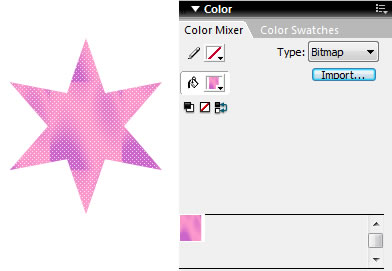
You can also create a custom image gradient and apply it to a vector object by choosing the last option in the Type drop down menu which is the Bitmap option. Choose Bitmap and import the graphic that you would like as your custom gradient. See example given below.
Default Gradients in Flash
There are some default gradient styles in Flash which you can view using the paint bucket tool. They can be seen in the last row. You can use any of these styles and change the colors or delete extra colors.

Changing the Direction of the Gradient and Expanding or Contracting the Gradient
 You can also change the direction of the gradient or you can expand or contract the gradient using the gradient transform tool found in the right tool bar.
User the circle in the gradient transform tool to drag and change the direction of the gradient. Use the square with the arrow to expand or contract the gradient size. See the examples given below.

Click here for our tutorial on applying gradients to text
No portion of these materials may be reproduced in any manner whatsoever, without the express written consent of Entheos. Any unauthorized use, sharing, reproduction or distribution of these materials by any means, electronic, mechanical, or otherwise is strictly prohibited.